Reminders & AI scheduling
KinLife handles two flavours of “do this later”: simple reminders before an event, and full AI schedules that run a task on a recurring basis. Manage AI schedules under AI Scheduler.
Two kinds of automation
- Reminders: a one-off nudge before something happens. You create one by asking the assistant in plain language.
- AI schedules: a plain-English instruction the assistant runs on a schedule, using all its normal tools.
Reminders
Just ask the assistant: “remind Sophie about her maths test 24 hours before”. It sets up a one-off nudge for whatever timing you name, a day before, an hour before, or at a specific time.
Name who it's for and the assistant messages the right people: Sophie about her piano lesson, or the whole family about Saturday's game.
Where reminders go
Reminders are delivered through whichever channel suits each person:
Set up the channels you want in Integrations.
AI schedules
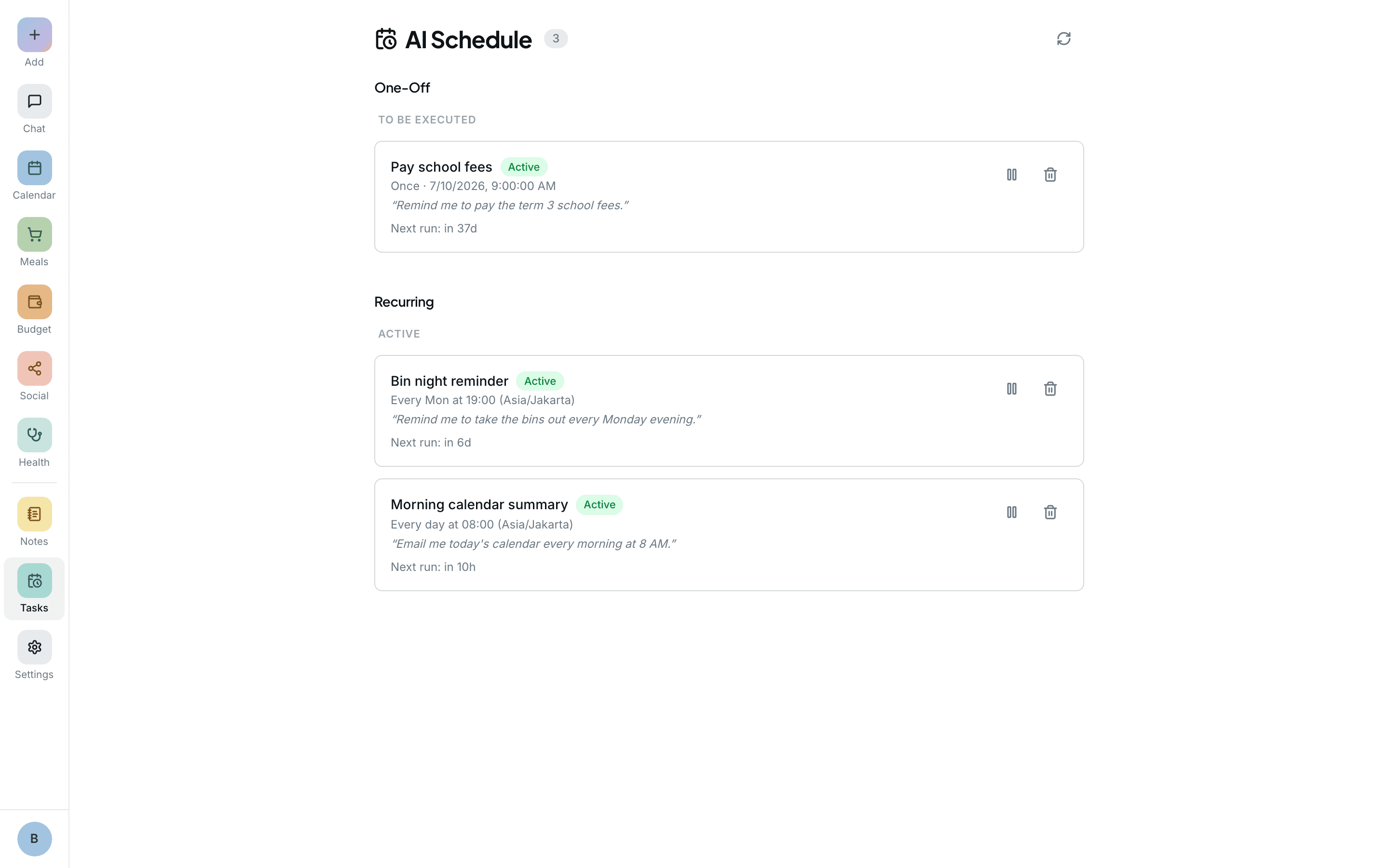
An AI schedule pairs an instruction with a timing: one-off (run once at a time) or recurring (on a schedule). When it fires, the assistant runs the instruction with the same tools it has in chat, so it can read your calendar, create events, send messages, and update notes.
Create one in plain language: “every Sunday at 6pm, summarise the week ahead and email it to the family”.
Useful automations
- Every Sunday evening: summarise the week and email the family.
- Every Monday morning: flag any scheduling conflicts.
- First of the month: build a shopping list for the month's school events.
- The day before a big event: message the relevant members the details.
Reviewing & editing runs
Each time a schedule runs, it's logged with a status (running, completed, or failed), any error, and a link to the full chat transcript you can review. You can pause, edit, or delete a schedule at any time from the AI Scheduler page.