
Create your family & onboarding
Getting started takes about two minutes. You sign up, a short onboarding chat learns the basics about your family, and then you're ready to drop things in and ask. Every new family starts on the full Family plan, no credit card required. Below is the whole flow, step by step, exactly as you'll see it.
Sign up
You can create an account two ways:
- Continue with Google, the fastest path. Google's verified email is used, so there's no extra confirmation step.
- Email and password. We send a verification link first. Click it, then sign in. You can also verify later under Settings → Account.
Meet the onboarding chat
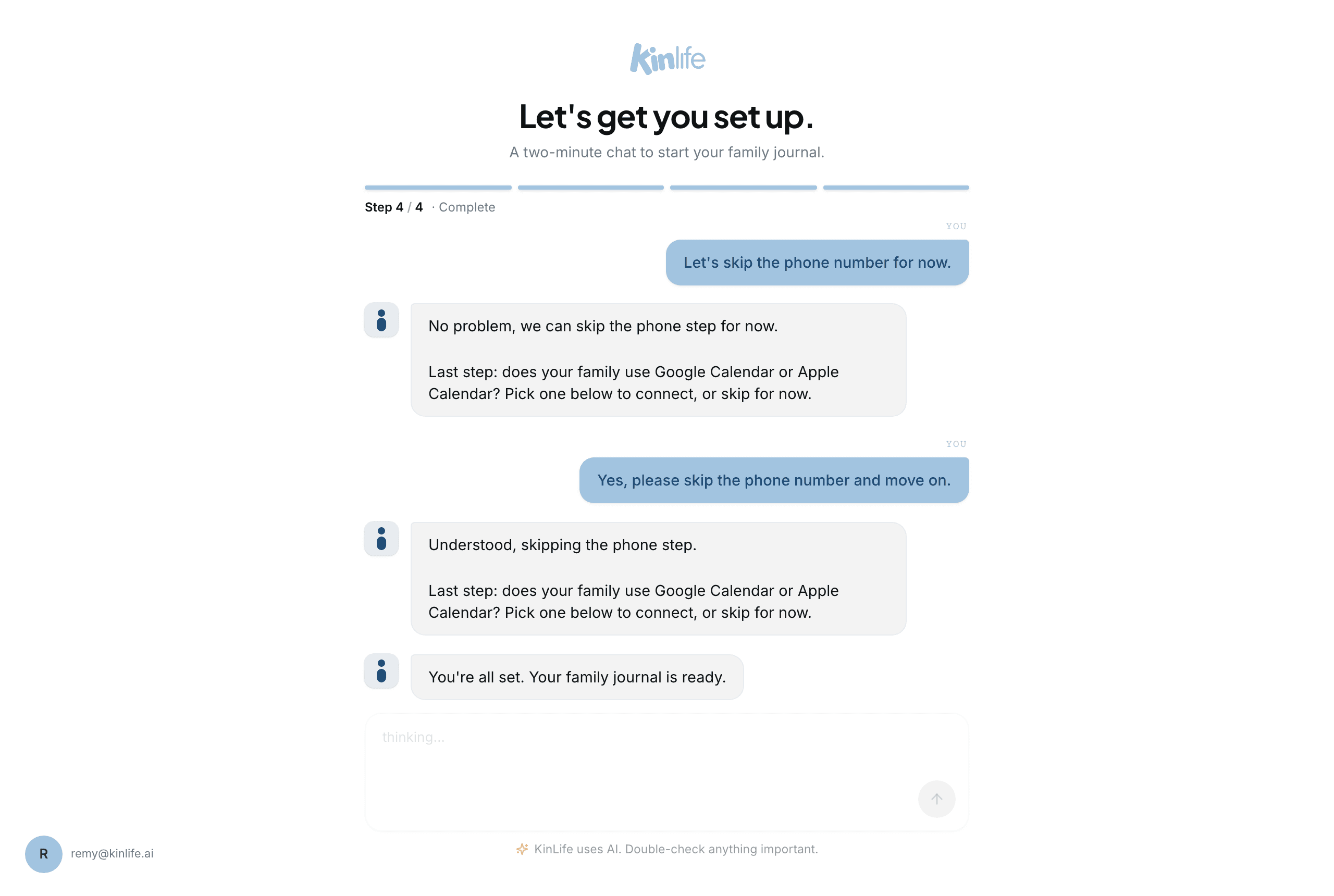
Instead of a long form, a guided chat walks you through four small steps. It reads your situation as it goes (Google sign-in, an existing family, a pending invite) and only asks what it still needs. A progress bar across the top tracks where you are.
- 1Your name. What the assistant should call you.
- 2Your family. A name and location, plus anyone else you want to add now. Your timezone is picked up from your browser automatically.
- 3Your mobile / WhatsApp number. So reminders and WhatsApp messages can reach you. Skippable.
- 4Connect a calendar. Google or Apple Calendar, or skip for now. This is the last step.
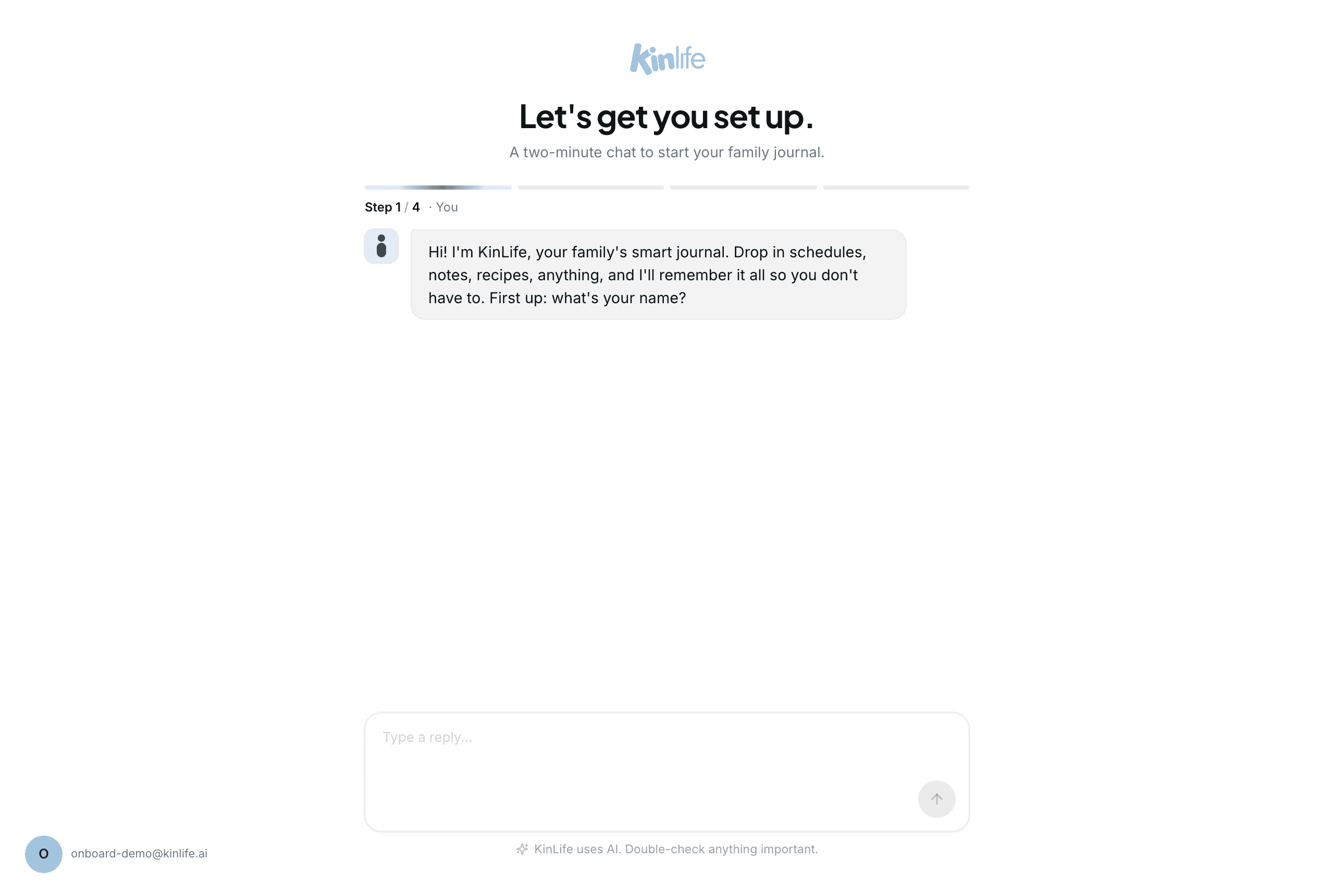
Step 1: Your name
Tell the assistant your first name. It's how KinLife will address you from then on, in chat and in reminders. Once you answer, it moves straight on to your family and lets you know your Family plan is free during the launch period.
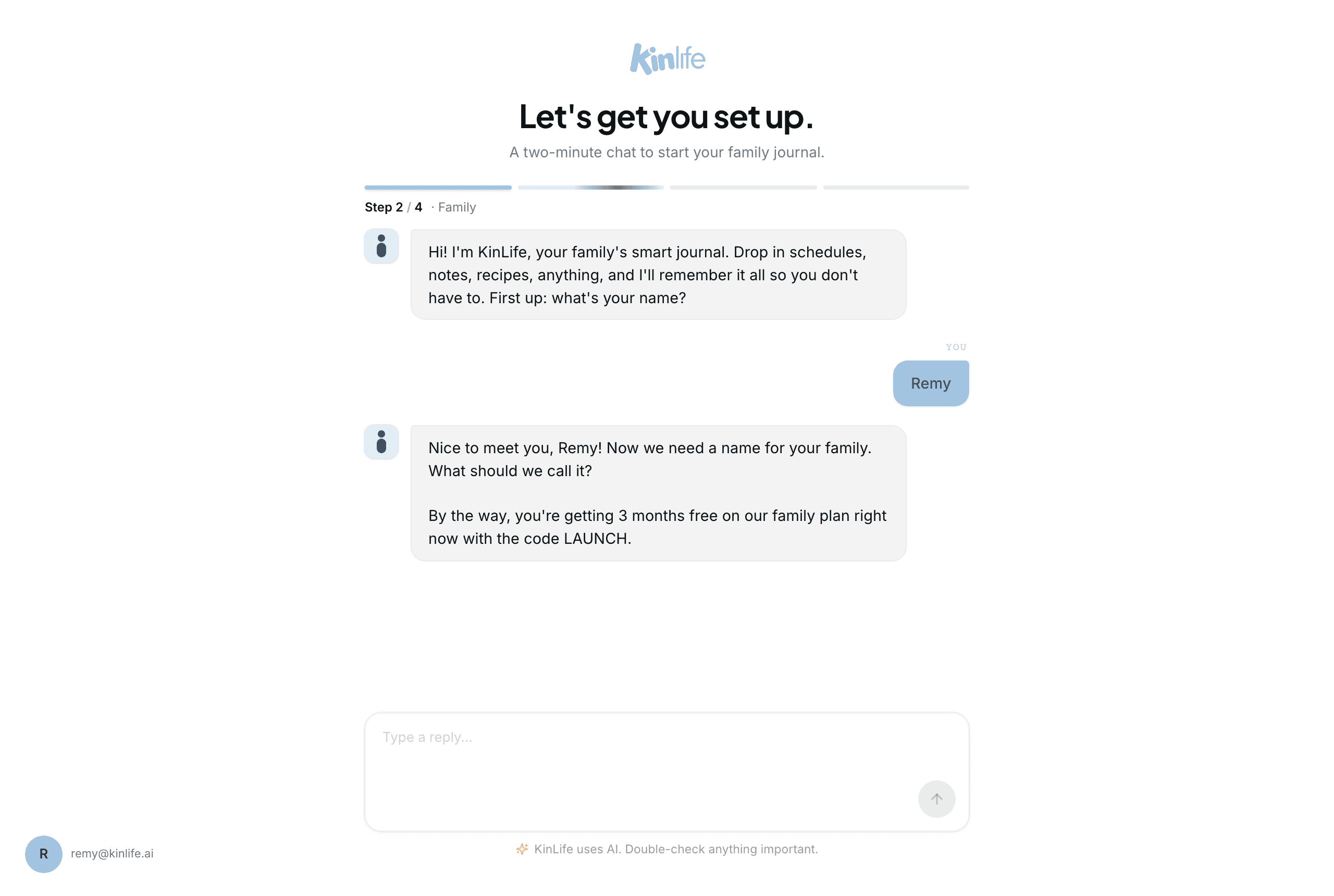
Step 2: Your family
Give your family a name and a location. You can add other adults in the same breath: just mention their name and email and KinLife sends them an invite to join. Children can be added later from Members.
Try something like: “We're the Kind Family, based in Sydney. Please also add my partner Renee, her email is renee@kinlife.ai.”
KinLife creates the family, sends your partner an email invitation, and checks whether anyone else should be added before moving on.
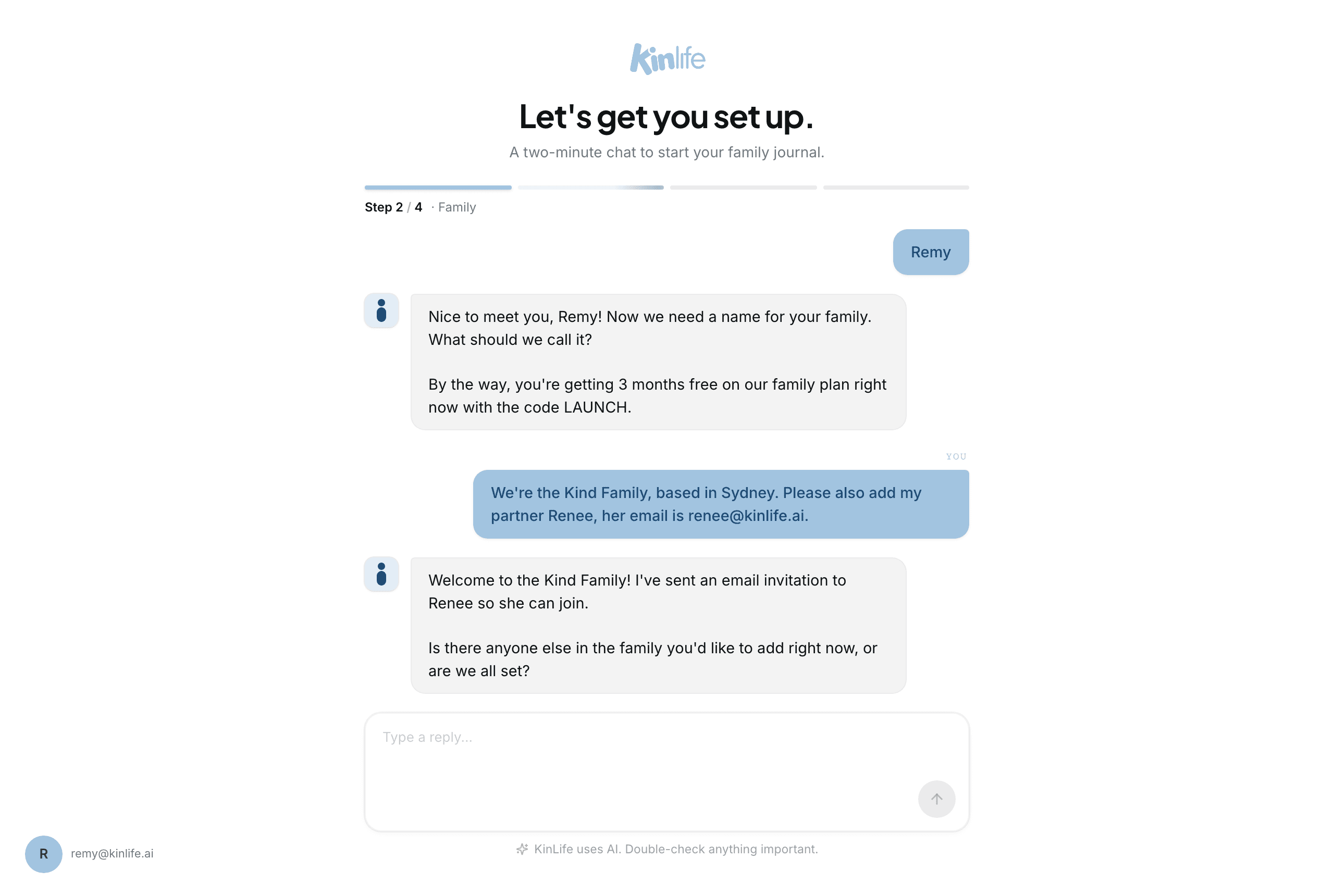
Step 3: Your mobile number
Next the assistant asks for your mobile (and WhatsApp) number so reminders and messages can reach you there. This step is optional. Say you'd like to skip it and KinLife moves on to the last step. You can always add your number later under Integrations.
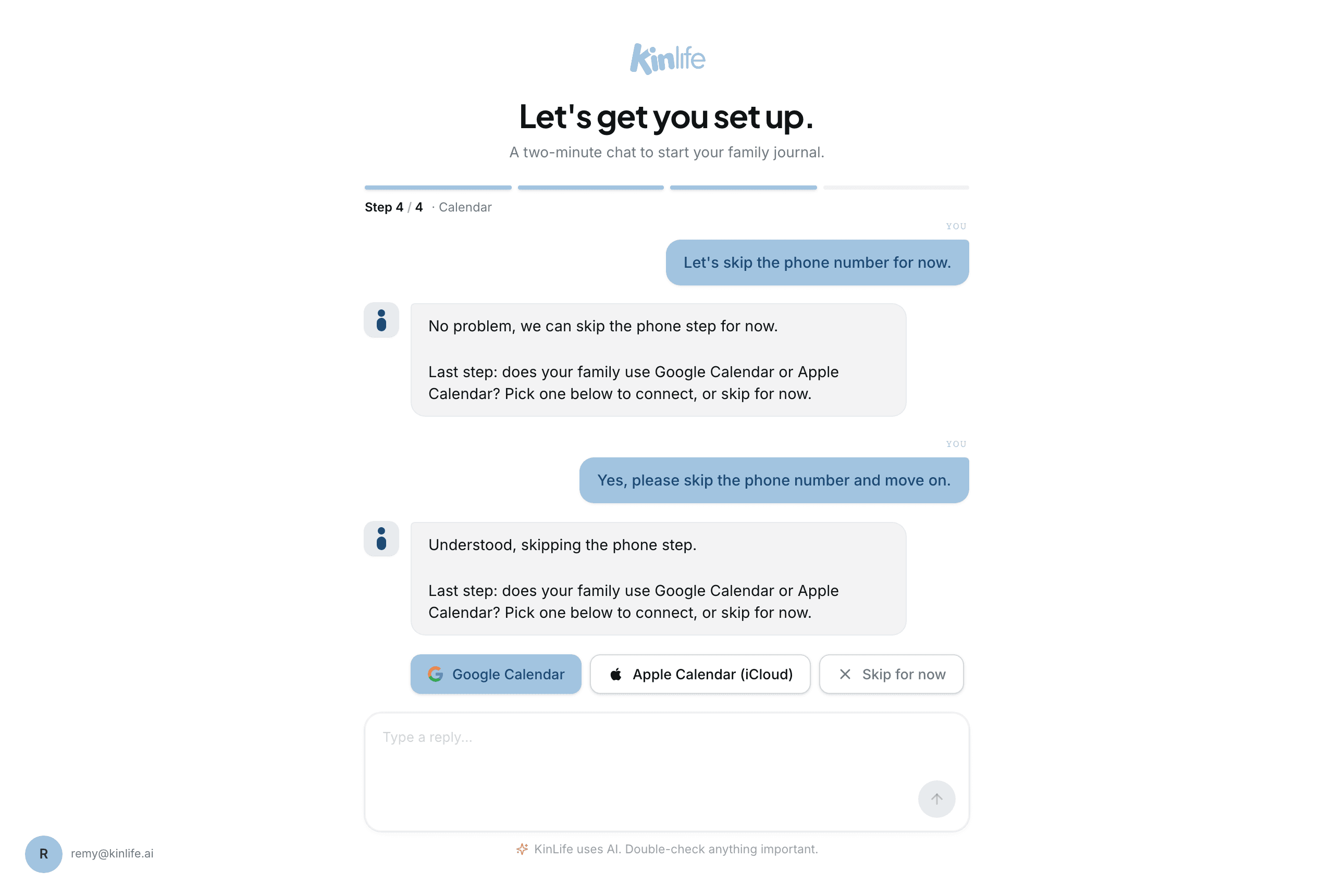
Step 4: Connect a calendar
The final step gives your events somewhere to live. Pick Google Calendar or Apple Calendar (iCloud) to connect now, or choose Skip for now and connect later. Whatever the first adult picks locks the family to that provider, so everyone stays in sync.
For the full calendar walkthrough (RSVPs, two-way sync, sharing), see the Calendar guide.
You're all set
That's it. KinLife confirms your family planner is ready and hands you off to the Add page, where a one-time intro invites you to paste a social post or schedule something.
Your invite code & family email
Once your family exists, two things are minted for it:
- An invite code that you share so your partner can join. See Invite & manage members.
- A family email address (
yourfamily@kinlife.ai). Forward newsletters, coach emails, or notices here and the assistant reads them. See Email & WhatsApp.
First things to try
- 1Connect your calendar. So events have somewhere to live. Calendar guide.
- 2Invite your partner. Share the invite code or send an email invite.
- 3Upload a document. Drag in the term calendar or snap the fridge notice and watch KinLife pull out the events.
- 4Ask the assistant something. Try “what does next week look like?” or “make a shopping list for taco night”.
Pausing & resuming
Onboarding state is saved as you go, so you can stop and pick up later on another device. You can even start the whole thing over WhatsApp: message the KinLife bot from a new number and it walks you through account creation, then emails you a link to claim the matching web account.