
Invite & manage family members
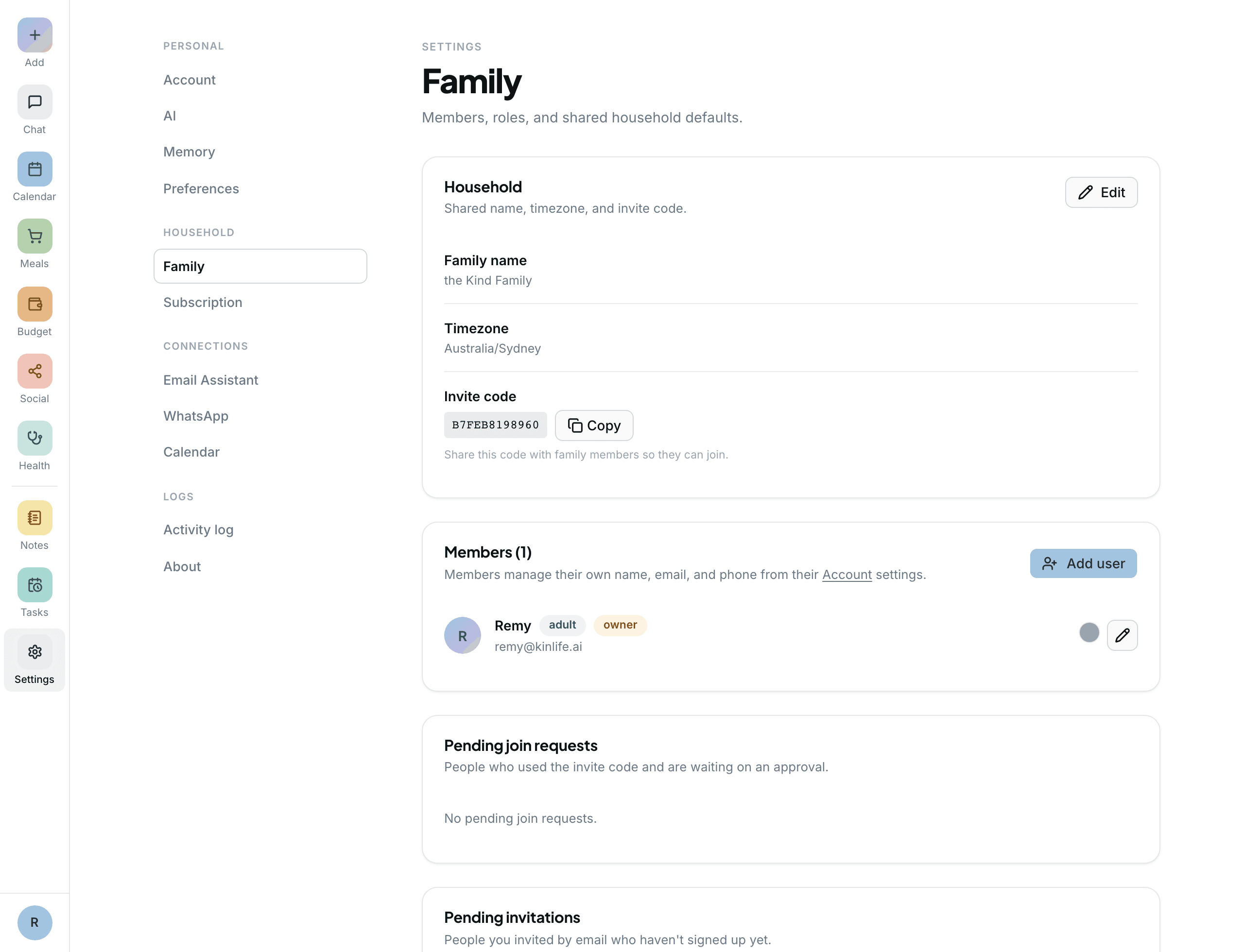
A family is a shared space: one calendar, one set of notes, one memory. You add the adults by invitation and the children directly. Manage everyone from Settings → Family, or just ask the assistant to do it.
How membership works
- One user, one family. Each account belongs to exactly one family at a time.
- Adults are invite-only. Nobody is ever silently added to your family. An adult joins only by consciously accepting.
- Children are added directly. A dependent has no account to accept with, so you add them yourself.
Invite an adult
From Settings → Family, open the Add user dialog and choose the Adult role. Enter their email.
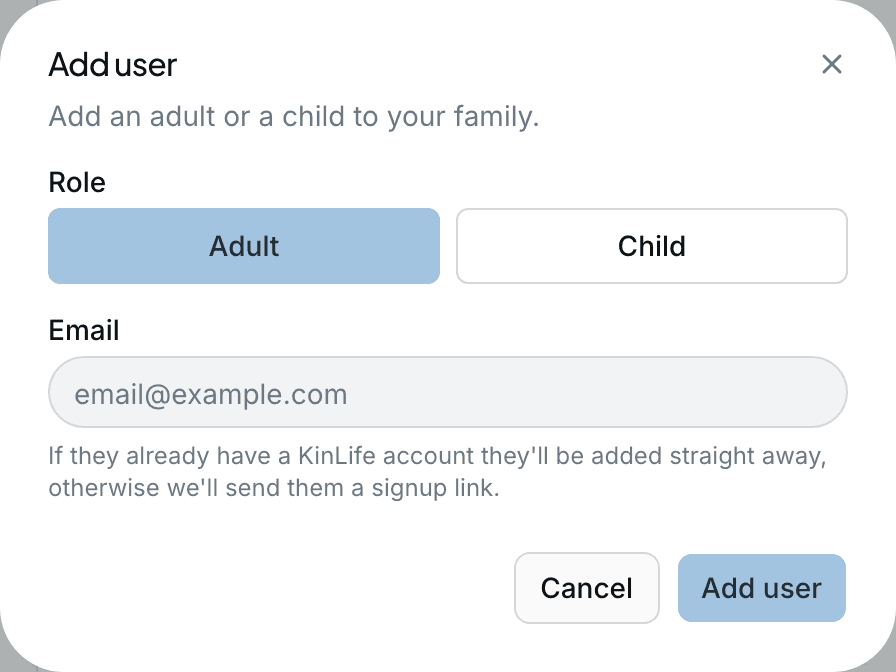
- 1KinLife emails them a “Signup and Accept Invite” link. No membership is created yet.
- 2They accept by clicking Join {family} on the join page, or by confirming the invite inside their own onboarding.
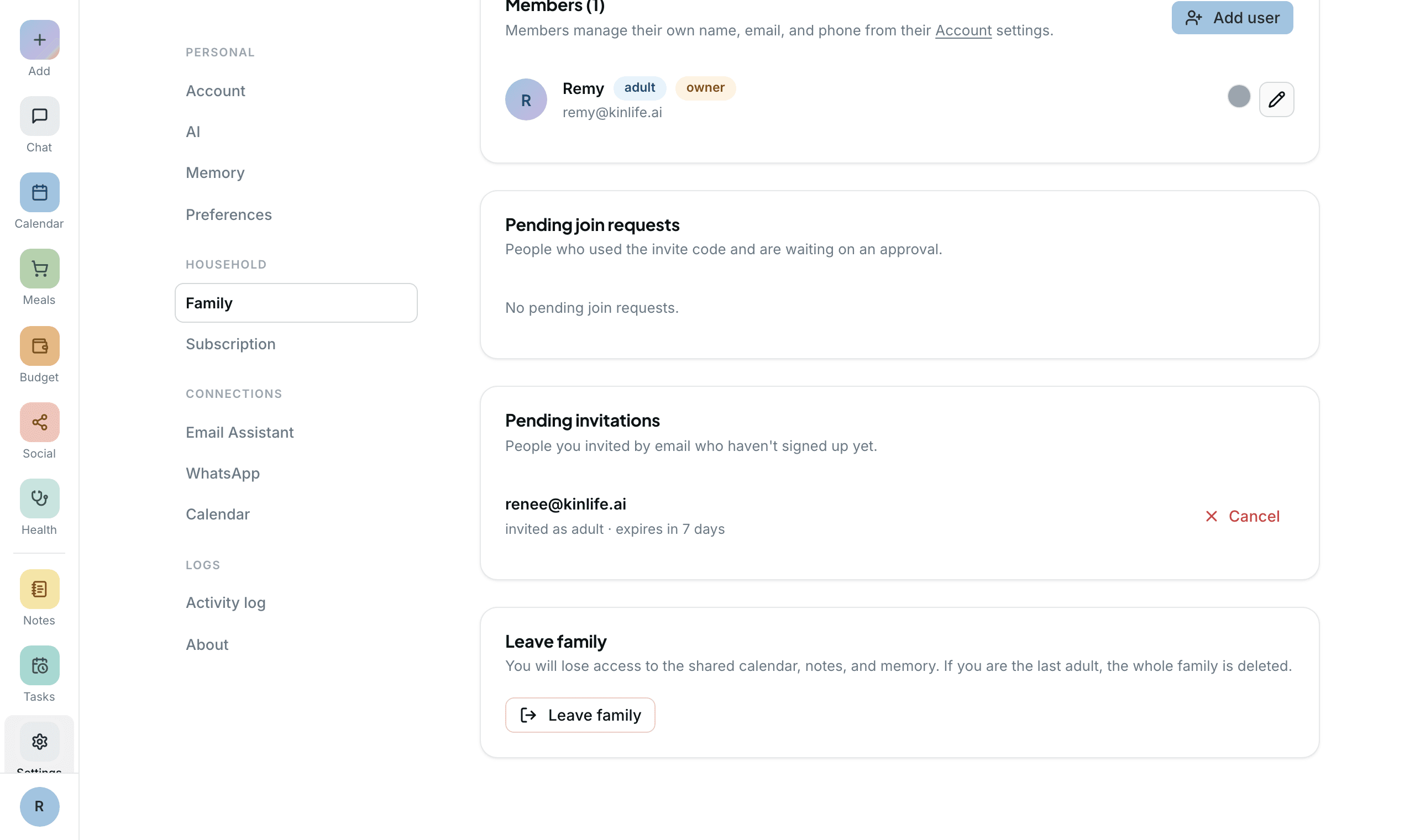
- 3You see an “Invitation sent” toast and a row in the Pending invitations card.
Add a child
In the same Add user dialog, choose the Child role.
- No email. The child is stored as a dependent with a name and date of birth, no login. They appear in the member list and have their own Edit dialog.
- With email.An account is created or reused and they're added directly, with a notification email.
Join requests via the family code
Someone who already has an account can ask to join using your family's invite code at the /invite page.
- 1They enter the code. A pending join request is created (they are not joined yet).
- 2Every adult gets a “{name}wants to join” email and a Pending join requests card appears in Settings.
- 3An adult approves them as an adult or a child, or rejects the request.
Roles & colours
There are two roles:
- Adult. Full access: manage the calendar, invite members, configure integrations, see everything.
- Child. Sees the family calendar and receives their own reminders.
Each member is automatically assigned a unique colour from a warm pastel palette. The colour is consistent everywhere: the calendar, member chips, and your connected Google Calendar. Events tagged to several people render as a colour gradient so you can see at a glance who's involved.
Leaving or removing someone
Adults can remove a member or change their role from Settings → Family. When membership changes, calendar sharing is updated automatically (access is granted or revoked on the shared calendar).